
Appearance
Policies
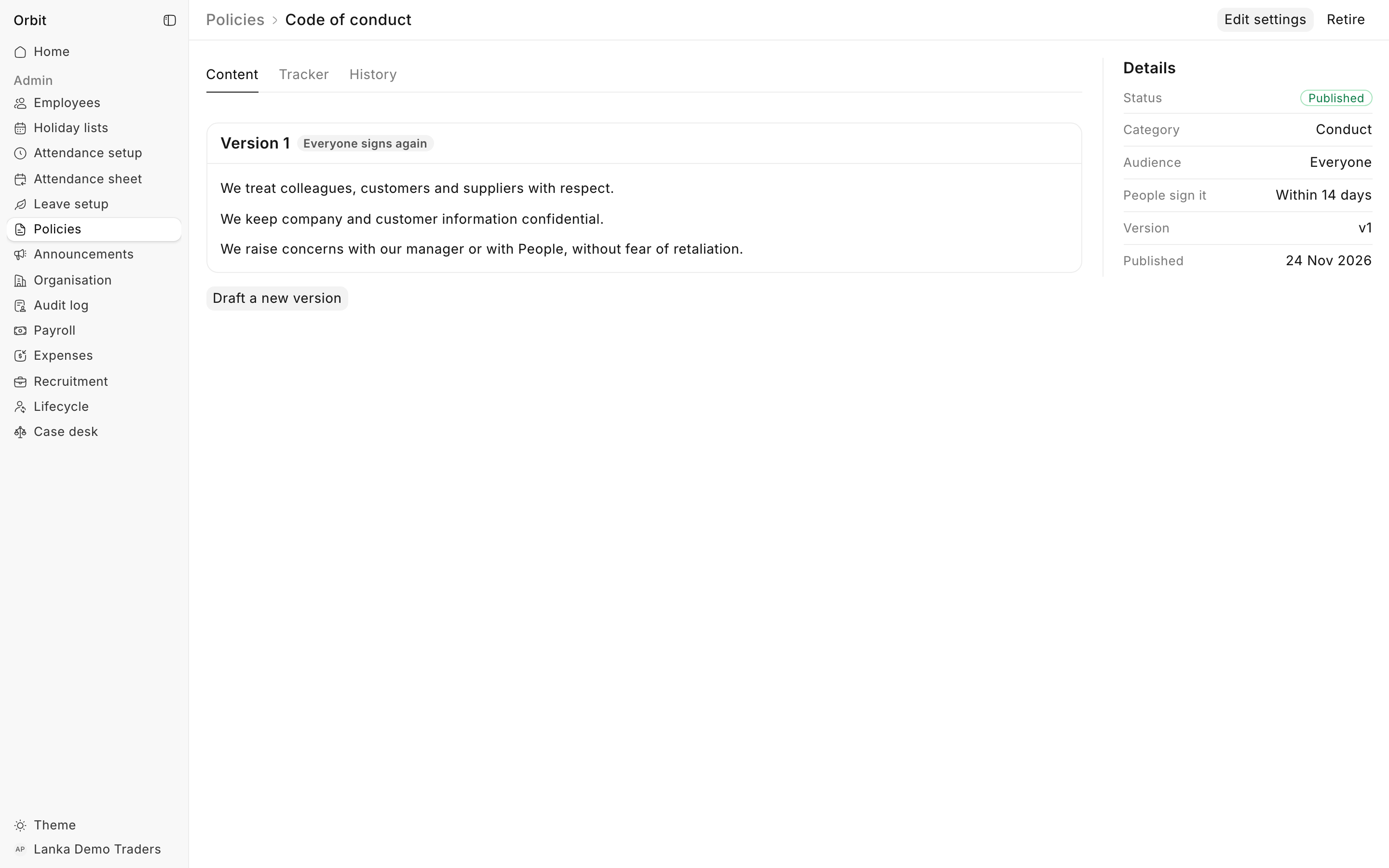
The policies module: company policies with versions, who must sign each version and by when, signed acknowledgements, a tracker and reminders. Announcements are not built yet.
Who can do what
| Task | Employee | Manager | HR admin | Owner |
|---|---|---|---|---|
| Read and sign policies meant for them | yes | yes | yes | yes |
| See reports' signing status | yes | yes | yes | |
| Create, draft, publish and retire policies | yes | yes | ||
| Waive someone's signature | yes (never their own) | yes | ||
| Read a signed acknowledgement | own | never | yes | yes |
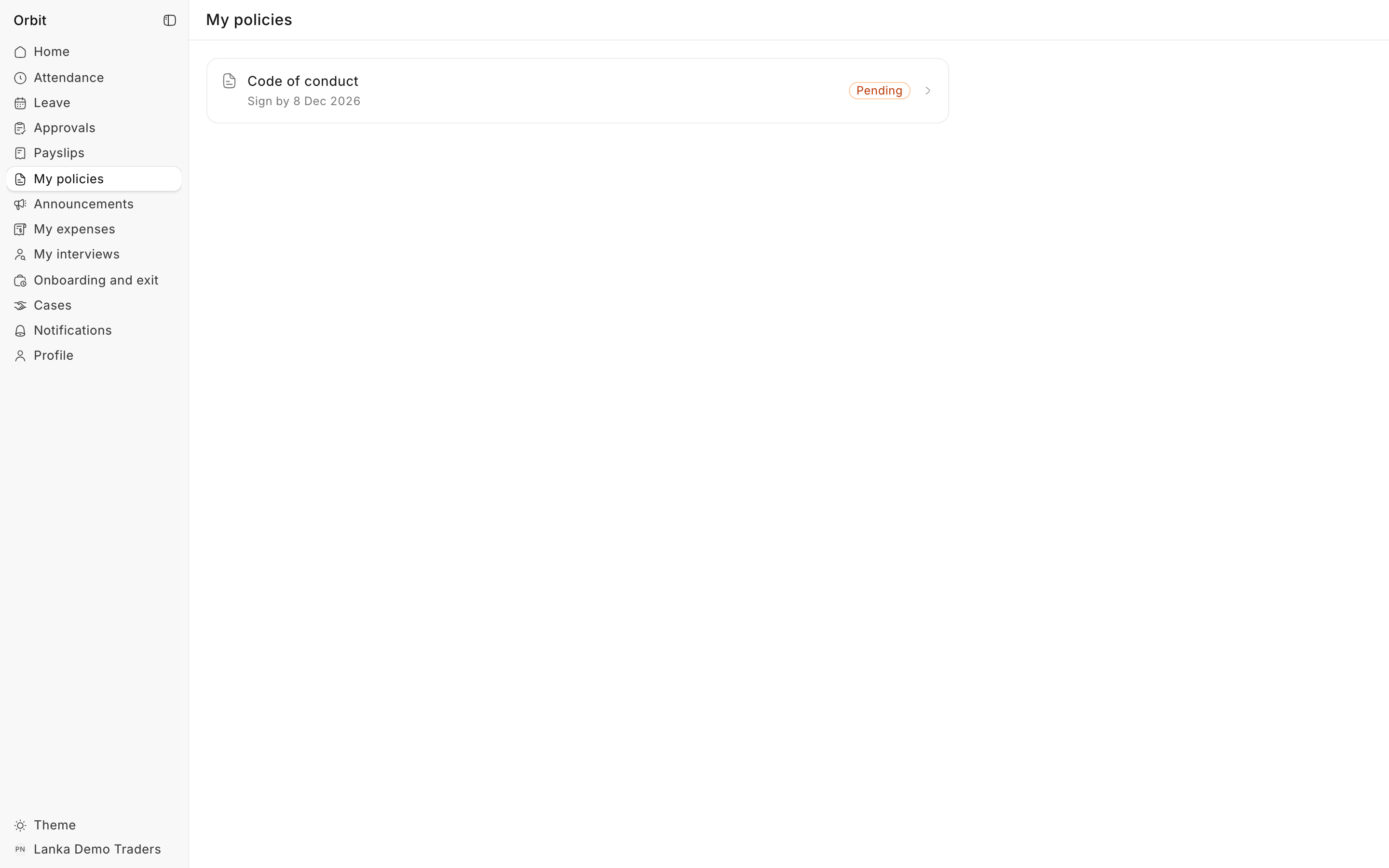
Sign a policy
- Self-service > My policies, or the Policies to sign card on Home.
- Open the policy and read it (or download the PDF).
- Tick I have read and agree to this policy, type your full name, and Sign.
INFO
If the policy changes while you read, Orbit asks you to read the new version and sign again. Your signature is tied to the exact version you saw.
Publish a policy (HR admins)
- Admin > Policies > New policy: title, category, who it is for (everyone, or some companies, departments, branches or employment types), whether people sign it, and the days to sign (0 to 365).
- Write the first version: plain text in paragraphs (up to 200 KB) or a PDF (up to 10 MB). Save draft. Only admins see a draft.
- Publish version 1. Everyone in the audience is asked to sign, due that many days after publishing (or after joining, for new starters).
Change a policy
- Open it and Draft a new version.
- Tick Minor change to keep the signatures people already gave. Otherwise everyone signs again.
- Publish it. Pending signatures on the old version are waived.
Retire a policy to stop asking for signatures. Signed acknowledgements are kept.
Published versions are final
A published version can't be changed. Signed acknowledgements are never edited or deleted.
Track signatures
The Tracker tab (next to Content) shows each person as Signed, Pending, Overdue or Waived. Waive someone with a reason when they don't need to sign.
- Reminders go out once from 3 days before the due date, and once when overdue.
- When someone leaves, their pending signatures are waived.
- Someone who moves out of the audience keeps a pending signature; HR waives it.
Announcements
HR admins and owners post announcements to everyone or to chosen companies, departments, branches or employment types.
- Admin > Announcements > New announcement: title, plain-text message, audience, and Pin to the top of the feed if it matters.
- Save draft, then Publish. Everyone in the audience is notified.
- The announcement's page shows Read receipts: who read it and when.
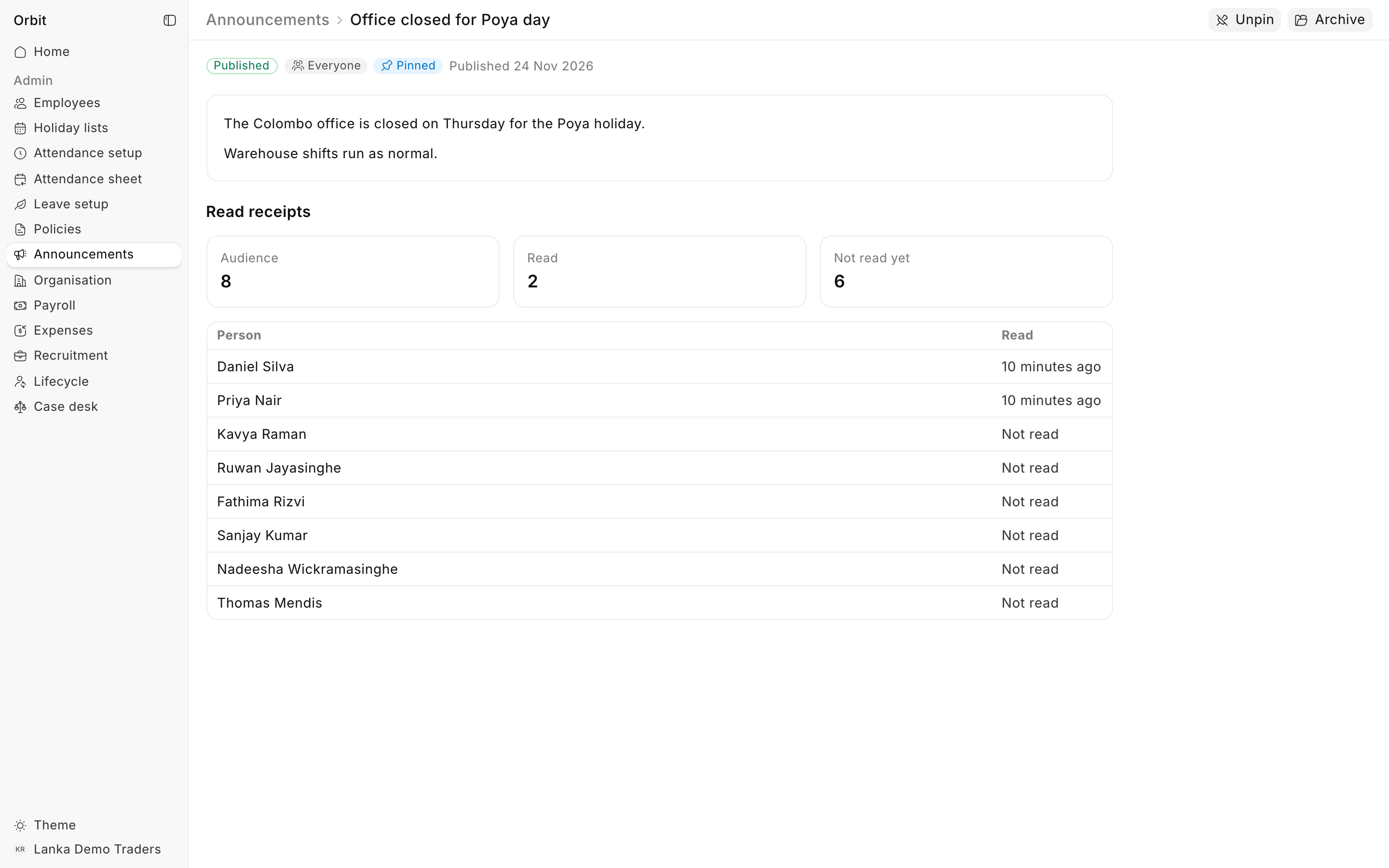
Employees read theirs under Self-service > Announcements, pinned first; opening one records the read.
Published means final
A published announcement can't be edited: Pin, Unpin or Archive it. Archiving keeps the receipts.
Other doors
Agents over MCP read policies and the person's own list, and draft versions. Publishing and retiring are sensitive. Signing and waiving are never agent tools. Agents may read and draft announcements; publishing is sensitive, and reading receipts or marking one read is never an agent's.